Product Updates
Your personal flight calendar: plan the routes you actually want to fly
Personal flight calendar is here. Schedule Flight Browser routes onto real dates and see them on Calendar and Home.
Most sim nights do not start with a contract briefing. They start with a feeling. You want a transatlantic before bed, or a short hop between work calls, or the same carrier you flew last weekend because the livery is already installed. Flight Browser was built for that freedom: real airlines, real city pairs, filters when you care, Surprise me when you do not.
What was still missing was a gentle way to say "I am flying this on Saturday" without pretending it is a roster assignment. Bookmarks solved "save this route." They did not solve "this is the day." Spreadsheets and phone notes work, but they live outside the app, and they never show up next to your next career leg when you open SimRoster on Friday night.
Personal flight calendar closes that gap. It is not a second career. It does not touch your rank, your contract, or dispatch review. It is simply your plan for Flight Browser flying, sitting beside the airline schedule you already trust.
Two schedules, one Calendar
Open Calendar and you will see Career and Personal at the top. Career is unchanged in spirit: the assignments your airline published, the same month and week views you already know, the same tap-a-day detail panel. Personal is yours: only the routes you chose from Flight Browser and placed on a date.
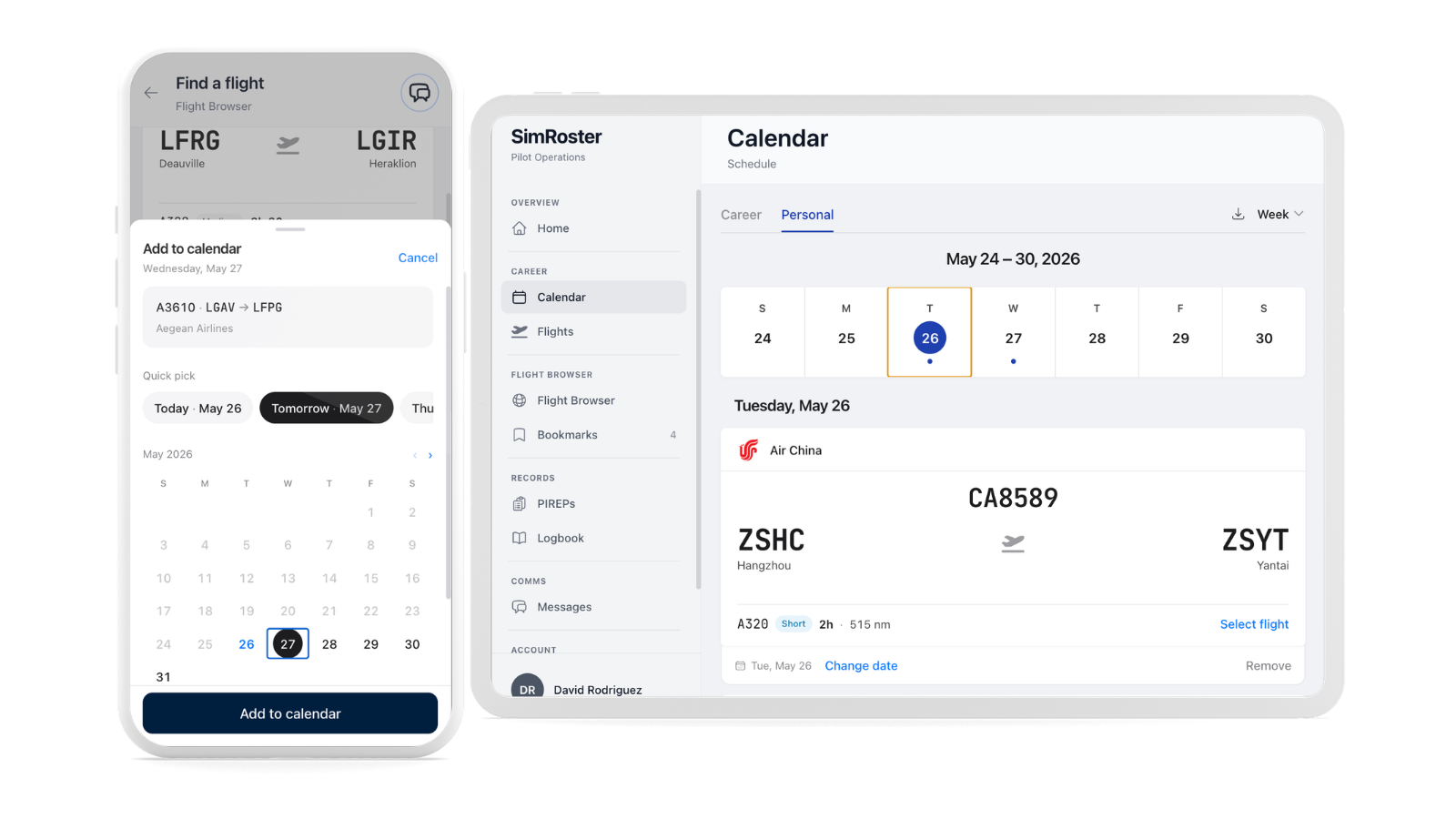
They do not fight each other. A heavy roster day and a personal hop on the same Saturday can both exist. SimRoster does not scold you for it. Real pilots juggle training, commuting, and pleasure flying; your sim life can look the same. If you want to focus, switch views. If you want the big picture, flip between month, week, and day the way you already do for career flying.
- Career view: your airline line, progression, and assignment cards.
- Personal view: scheduled Flight Browser routes with the same card style you see when you browse.
- Month, week, and day layouts for both, so planning feels familiar whether you are flying the line or flying for yourself.
From browse to date in one tap
Scheduling starts where discovery already happens. On any route card in Flight Browser, tap the calendar icon. On a flight details page for a free-flight leg, same icon, same flow. Pick a day from a clear sheet (quick chips for the next few days, or the full month if you are planning ahead). That route is now on your personal calendar.
Bookmarks are still there for routes you like but have not dated yet. Think of bookmarks as your shortlist and the calendar as your diary. You can bookmark tonight and schedule on Thursday when you know your weekend is free.
When the day arrives, open the route from Calendar or from Upcoming personal flight on Home, start the flight, and log it the way you always have for Flight Browser legs. Personal calendar items do not go through career dispatch. They stay in the freedom lane.
Home shows what matters next
We did not want you to hunt for your next personal leg behind a tab or a mode switch. Home now shows Upcoming flight assignments for career and Upcoming personal flight when you have one scheduled, one after the other, right under your crew card.
If you only fly career, tap Hide personal and it stays out of your way. If you only fly Flight Browser, Hide career does the same. Both stay available with a single Show link if you change your mind. No settings maze, no dashboard builder, just respect for how you actually use the app.
That matters for the feeling we care about: open SimRoster, see the next thing you are excited to fly, go load the sim. The fewer taps between intention and throttle, the better.
A small fix behind the scenes
While we were in the calendar work, we also fixed a rare career scheduling issue. A small number of pilots could see more than one long-haul duty stacked on the same calendar day, which does not match how real pairings work. Schedules now respect stronger return and rest rules for long and ultra-long routes so those days look believable again.
How to try it this week
- Open Flight Browser, find a route you are excited about, and tap the calendar icon. Pick this weekend or a night you already protect for sim time.
- Open Calendar, switch to Personal, and confirm the route sits on the day you chose.
- Check Home before your session. Upcoming personal flight should be waiting with the same card you would tap from the browser.
- If career is not your focus right now, Hide career on Home and enjoy a cleaner first screen.
Structure when you want it, freedom when you do not
SimRoster grew up as a career product, and we are proud of that. Captain still means something here. But the community taught us that many of you live in both worlds: the line on Tuesday, the long-haul you picked yourself on Saturday. Personal flight calendar is our way of honoring both without blurring them.
Plan the routes you care about. Fly them on the days you chose. Let career and personal coexist on the same app, the same Calendar, the same Home screen. That is the release. We hope it makes your next sim night feel a little more intentional and a lot less like homework.
Personal flight calendar is live now for subscribers. Open SimRoster, schedule something you are looking forward to, and tell us what planning feature we should tackle next.